Make shortcut for locking your desktop and keyboard
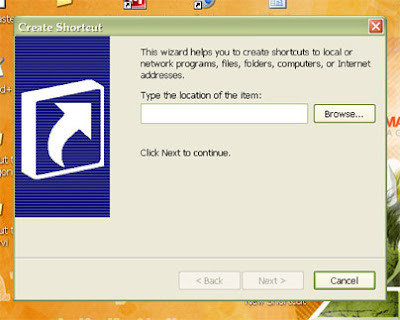
Sometimes you need to move away from computer quick without shutting it down. But there are people near you don't trust. How to keep them not to touch your computer? Lock it. OK, but how to do that quick? Well, you'll do that if you have a shortcut on desktop for looking your computer desktop and keyboard. Just double-click on shortcut. And here's how you'll make that shortcut.
Right-click on desktop.
Take "New > Shortcut".
"Create Shortcut Wizard" opened.
In text field, type: "rundll32.exe user32.dll,LockWorkStation".
Next.
Name your shortcut as you like.
Finish.
Now, you have a shortcut for locking your desktop and keyboard. Here's how you'll change it's icon:
Right-click on shortcut.
Chose "Properties".
Click on "Shortcut" card.
Click "Change Icon".
In "Look for icons in this file" field, type "Shell32.dll".
OK
Chose icon from list.
OK.
Labels: caps lock, desktop, icon, keyboard, shortcuts
 Subscribe in a reader
Creating keyboard shortcuts to open programs
You can create keyboard shortcuts to open programs, which can often be simpler than opening programs using your mouse or other pointing device. Before completing these steps, verify that a shortcut was created for the program to which you want to assign a keyboard shortcut. If no shortcut was created, browse to the folder that contains the program, right-click the program file, and then click Create Shortcut to create one.
1. Locate the shortcut to the program for which you want to create a keyboard shortcut.
2. Right-click the shortcut, and then click Properties.
3. In the Shortcut Properties dialog box, click the Shortcut tab, and then click the Shortcut key box.
4. Press the key on your keyboard that you want to use in combination with CTRL+ALT (keyboard shortcuts automatically start with CTRL+ALT), and then click OK.
You can now use this keyboard shortcut to open the program when you're using the desktop. The shortcut will also work while using some programs, though it might not work with some programs that have their own keyboard shortcuts.
Notes
* The Shortcut key box will display None until you select the key, and then the box will display Ctrl+Alt followed by the key you selected.
* You cannot use the ESC, ENTER, TAB, SPACEBAR, PRINT SCREEN, SHIFT, or BACKSPACE keys to create a keyboard shortcut.
Labels: shortcuts
Subscribe in a reader
Keyboard Shortcuts for Mozilla Firefox
CTRL + A Select all text on a webpage
CTRL + B Open the Bookmarks sidebar
CTRL + C Copy the selected text to the Windows clipboard
CTRL + D Bookmark the current webpage
CTRL + F Find text within the current webpage
CTRL + G Find more text within the same webpage
CTRL + H Opens the webpage History sidebar
CTRL + I Open the Bookmarks sidebar
CTRL + J Opens the Download Dialogue Box
CTRL + K Places the cursor in the Web Search box ready to type your search
CTRL + L Places the cursor into the URL box ready to type a website address
CTRL + M Opens your mail program (if you have one) to create a new email message
CTRL + N Opens a new Firefox window
CTRL + O Open a local file
CTRL + P Print the current webpage
CTRL + R Reloads the current webpage
CTRL + S Save the current webpage on your PC
CTRL + T Opens a new Firefox Tab
CTRL + U View the page source of the current webpage
CTRL + V Paste the contents of the Windows clipboard
CTRL + W Closes the current Firefox Tab or Window (if more than one tab is open)
CTRL + X Cut the selected text
CTRL + Z Undo the last action
F1 Opens Firefox help
F3 Find more text within the same webpage
F5 Reload the current webpage
F6 Toggles the cursor between the address/URL input box and the current webpage
F7 Toggles Caret Browsing on and off. Used to be able to select text on a webpage with the keyboard
F11 Switch to Full Screen mode
Labels: firefox, shortcuts
Subscribe in a reader