How to email a group of contacts in Gmail
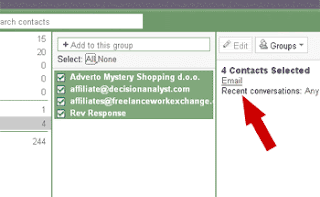
Another interesting and useful Gmail option is possibility to email a group of contacts . And that you can do on this way. Go to "Contacts". Than click on Group you would like to e-mail. On "Select" click "All". Or select just contacts you want to email. When contacts are selected, on right side just click "Email". Gmail will automatically redirect you to new message with field "To" filled. That's if you would like to everyone who receive this message see who else you mailed message. If you don't want that, copy addresses from "To" field to "Bcc" field and after that, leave just one address in "To". Than you can write Subject and message body and send it.
Labels: gmail
 Subscribe in a reader
Gmail - How to add contact in group
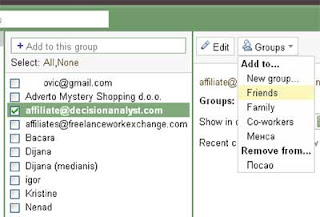
You need to add some email adress (contact) in your Gmail group (eg friends). And that contact is only in suggested contacts and you don't see Group menu on right side in Gmail. You need first add that suggested contact to My contacts or into Most contacted. Go to Suggested contacts, check particular check-box infront that e-mail adress and click Move to my contacts on right. Now, go to My contacts, check box by adress, click Groups menu right, and Add to group you want.
Labels: contact, gmail
Subscribe in a reader
Gmail and Outlook Express

If you have an Gmail account you have almost 3 gigabytes space on their servers and some people use that space as storage for their messages. But you can also have access to Gmail through Outlook Express, too if you like. In that case you can write mails and answers using Outlook Express advantages. You can use Stationery and other possibilities.
To start with that, you have to do following:
- Open Outlook Express and go to Tools – Accounts
- Click on Add – Mail
- Type your name and click Next
- Type your Gmail address and go Next
- In «Incoming mail (POP3, IMAP or HTTP) server», type pop.gmail.com
- In «Outgoing mail (SMTP) server», Type smtp.gmail.com
- Click Next
- Write your full gmail address in Password
- Go Next and than Finish
- Pick up pop.gmail.com account you just made
- On Servers card, click Properties
- Under «Outgoing Mail Server» check My server requires authentication.
- Go to Advanced
- Check «This server requires a secure connection» (SSL) under «Outgoing mail (SMTP)» and under «Incoming mail (POP3)»
- On Outgoing server (SMTP) type 465. If number under Incoming server (POP3) didn't automatically changed to 995, type 995.
- Click OK and than Close.
Labels: gmail, outlook express
Subscribe in a reader